
Data Manager reads the terms of one taxonomy and downloads them as a file. Use it to back up terms, move them to another site, or edit them in a spreadsheet. Exporting never changes your terms.
Export a CSV file
- Go to WP Taxonomy → Data Manager.
- Under Choose what to manage, select Categories, tags & terms.
- Under Choose an action, click Export.
- In What do you want to export?, choose the taxonomy. For post categories, choose Categories (category).
- Leave File format set to CSV (.csv).
- Click Preview to check the terms (optional), then click Download CSV.
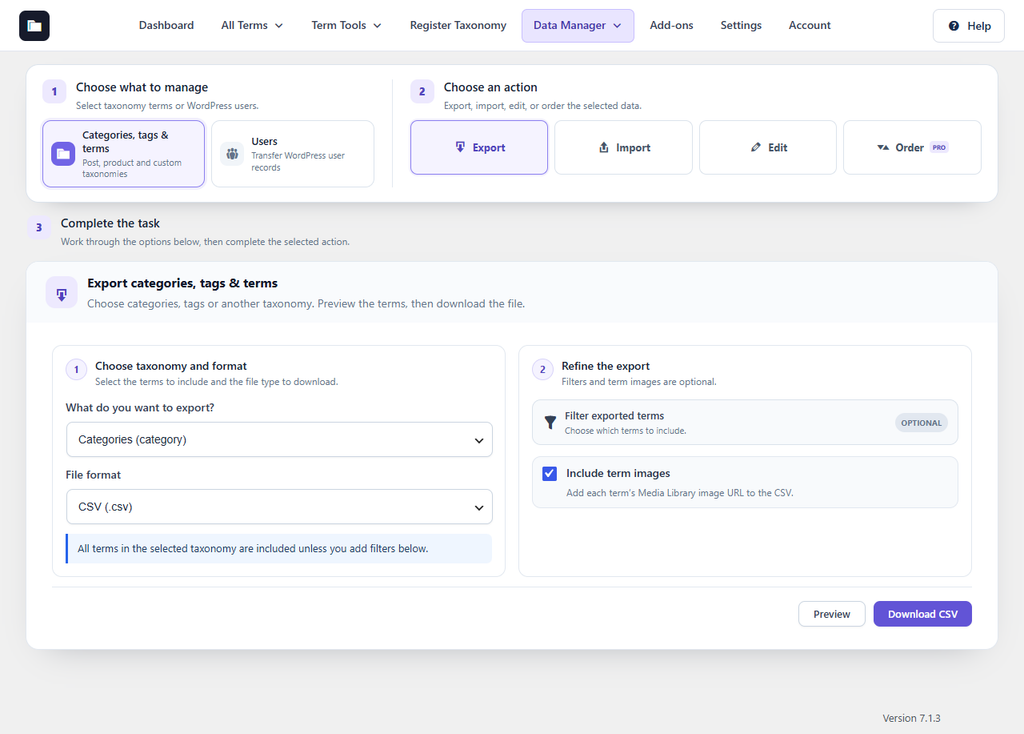
Figure 3. The Export screen in Data Manager.
The file is named after the taxonomy, for example category-terms.csv. It has the columns name, slug, description, parent_slug, and custom_link. With Pro term images, tick Include term images to add an image_source column with each term’s image address.
Export only some terms
Click Filter exported terms to narrow the export. All the filters you set apply together.
- Hide empty terms: leaves out terms that are not assigned to any content.
- Name filter: keeps terms whose name contains or starts with the text you type. Upper and lower case are treated the same.
- Parent: choose Top-level terms only, or choose a parent term to export its direct children.
- Term count: set a minimum, a maximum, or both for the number of items assigned to each term.
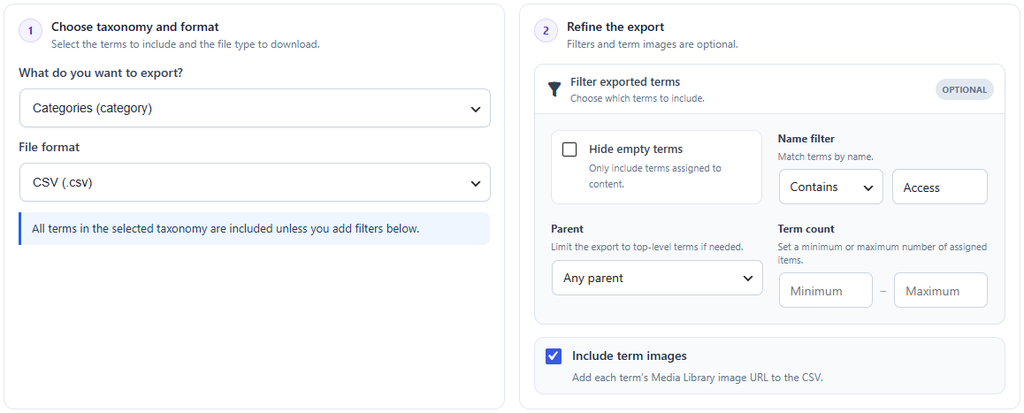
Figure 4. Export filters. This example keeps terms whose name contains “Access”.
Preview before you download
Click Preview to see a table of the terms that match the taxonomy and filters, with the same columns as the file. Use Rows per page and the arrow buttons to page through the table, and click a column heading to sort it. The download uses the same taxonomy and filters as the preview.
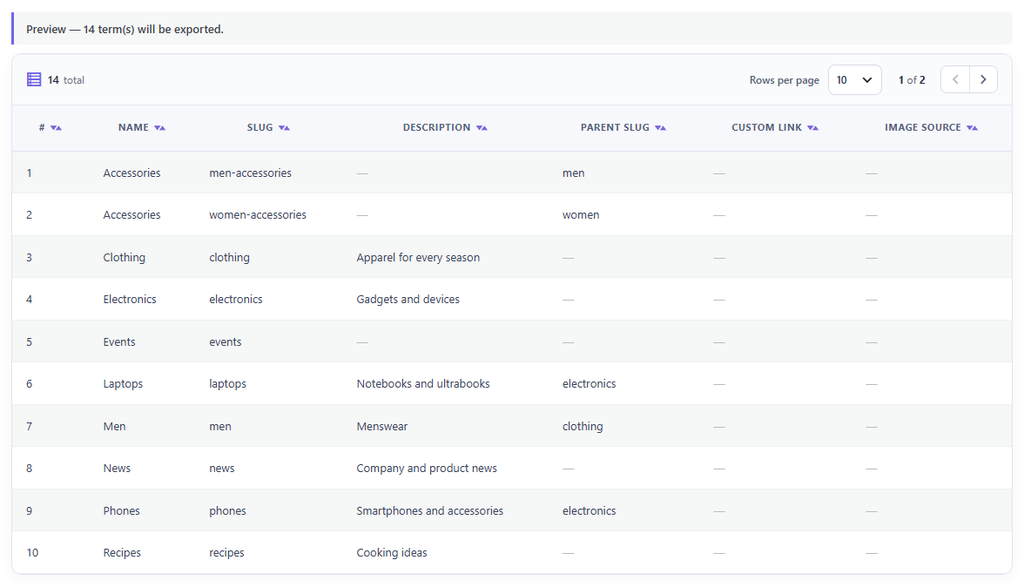
Figure 5. The preview lists the terms that the file will contain.
Export Excel or JSON (Pro)
- Choose the taxonomy.
- In File format, choose Excel (.xlsx) or JSON (.json).
- Click Download Excel or Download JSON.
Excel and JSON files contain name, slug, description, and parent_slug. Custom links and term images are included only in CSV files.
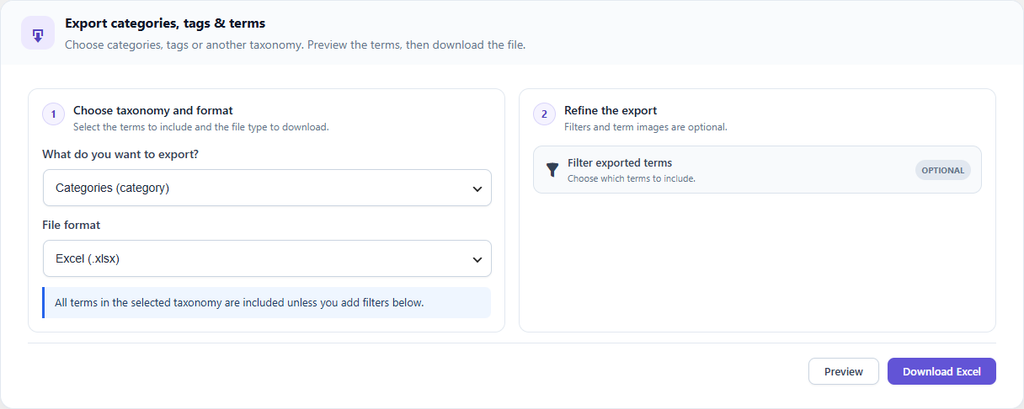
Figure 6. Exporting categories as an Excel file (Pro).