
Data Manager also moves WordPress user accounts between sites.
Export users
- In Data Manager, select Users and click Export.
- Optional: tick roles under Filter by Role. Leave all roles unticked to export every user.
- In File type, choose CSV (.csv), Excel (.xlsx), or JSON (.json).
- Click Download users.
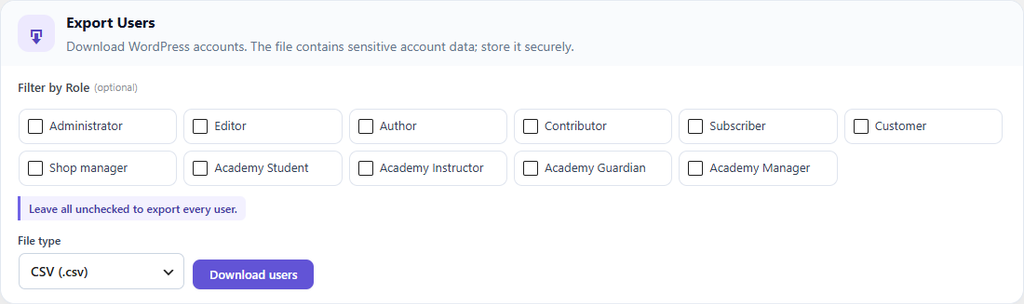
Figure 15. Exporting users, optionally filtered by role.
The file contains the columns username, email, password_hash, roles, first_name, last_name, and meta.
Warning: The export contains email addresses and password hashes. Store and share the file securely.
Import users
- In Data Manager, select Users and click Import.
- Click Choose File and select a CSV, Excel, or JSON file of up to 10 MB. The file type is set from the file you choose.
- Click Import Users and read the message that appears.
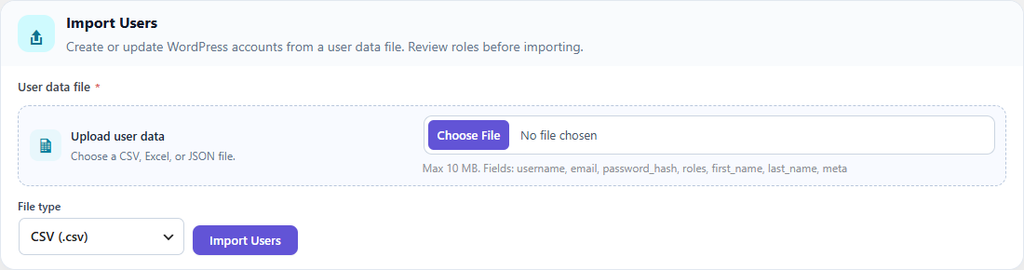
Figure 16. Importing users.
How each row is handled:
- If the username and email are new, a new account is created. A WordPress password hash is kept as it is, a plain-text password is encrypted, and an empty password is replaced with a random one.
- If the username or email already exists, that account’s email, first name, last name, and allowed metadata are updated. Its password and roles are not changed.
- In CSV files, the columns must be in this exact order: username, email, password_hash, roles, first_name, last_name, meta. Separate several roles with a | character.
Every row needs a username and an email. The message does not list results row by row, so test with a few rows first and check important accounts afterwards.