
Term Maintenance
Change a field on many terms at once, or copy or move terms to another taxonomy. Every job is previewed before it changes anything.
Bulk edit
- Go to WP Taxonomy → Term Tools → Term Maintenance.
- In Tool, choose Bulk edit, and choose the Source taxonomy.
- Select the terms: type their IDs, separated by commas (up to 100), or use Name or slug contains and Direct parent ID.
- Under Bulk edit settings, enter the Field to change, for example description. Choose Set value or Find and replace, and enter the new value.
- Click Preview job.
- Check the Before and After columns, type APPLY, and click Apply first batch.
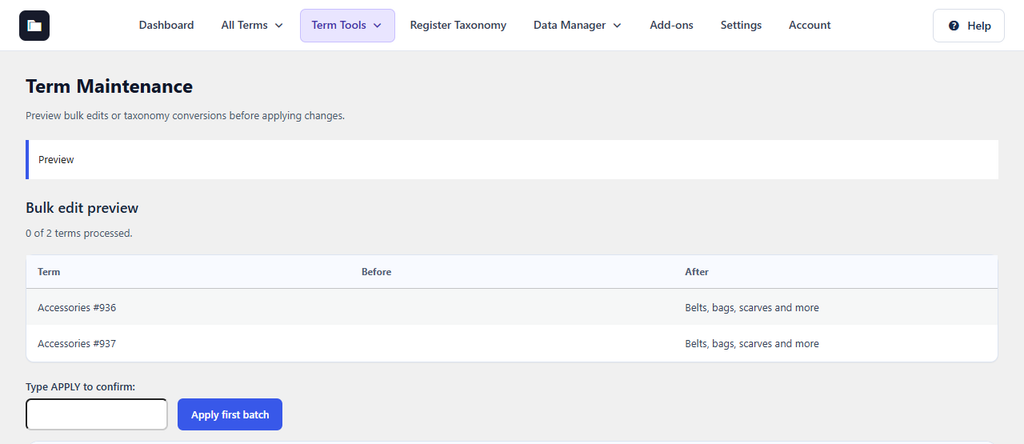
Figure 33. Preview of a new description for two Accessories categories.
Copy or move terms to another taxonomy
- In Tool, choose Taxonomy converter.
- Choose the source and destination taxonomies, and choose Copy or Move.
- Select the terms, click Preview job, and confirm.
Jobs run in batches and are listed under Recent jobs. A recent job can be restored while its restore window is open; terms changed again since the job are reported as conflicts. For custom fields, use the column name shown in Term Meta Transfer. For images, enter a Media Library attachment ID, or 0 to remove the image.